

669Q Login How-To: Resetting Passwords & Fixing Errors
Sign in to your account on our app or mobile site, reset a lost password and fix common login errors in a few taps.
Table of Contents
To use 669Q login, open the app or the mobile site, tap Login, enter your registered mobile number or username and password, then confirm any OTP we send. It takes under a minute. You need an existing account and a working SIM.
Quick answer: Open the app, tap Login, type your details, enter the OTP if asked. Forgot the password? Use the reset link on the same screen.
669Q – Before you start
Have these ready and the login goes smoothly.
- A registered account. No account yet? Register on the 669Q home page first.
- The mobile number you used to sign up, with the SIM in your phone.
- Your password, typed exactly as you set it.
- A stable connection (mobile data or Wi-Fi).
- You are 18 or older.
Takeaway: number, password, signal. That is all you need.
App or mobile site: which should you choose?
Both open the same account, so pick the one that fits your phone and habits.
| Point | App | Mobile site |
|---|---|---|
| Setup | Install once (see the 669Q app download page) | No install, open in your browser |
| Speed of return visits | One tap from the home screen | Open browser, type or tap bookmark |
| Phone storage | Uses some space | Almost none |
| Best for | Daily short sessions | Occasional use or older phones |
Your balance and history are the same on both. Choose the app if you play every day. Choose the browser if storage is tight.
669Q Login on the app, step by step
Five taps and you are in.
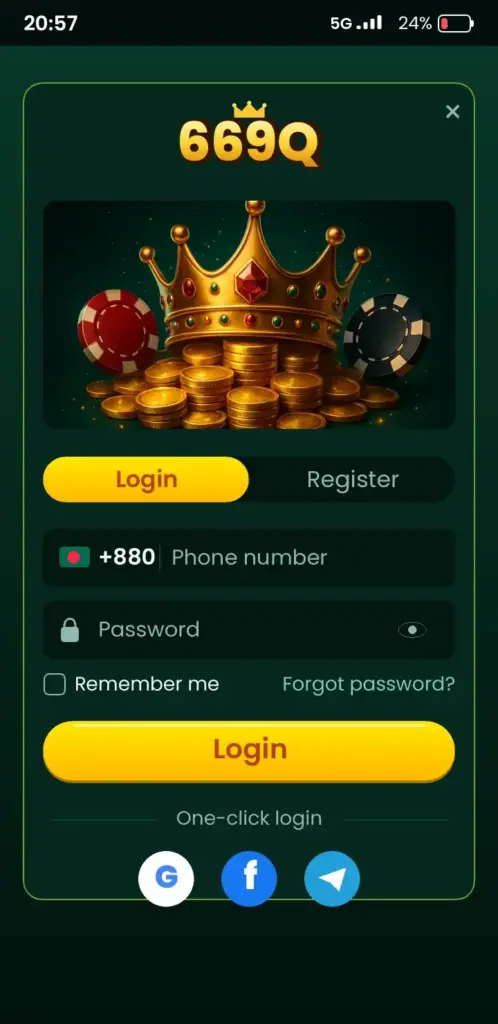
- Open the 669Q app from your home screen.
- Tap the Login button at the top.
- Enter your mobile number or username.
- Type your password. Tap the eye icon to check the spelling.
- Tap Login. If an OTP arrives by SMS, enter it within the time shown.
Always download the app only from the link on our own site. Never use a file sent by a stranger.
Log in on the mobile site
The browser route works on any modern phone.
- Open Chrome or your usual browser.
- Go to the 669Q site and check the address before typing anything.
- Tap Login in the top corner.
- Enter your details and confirm the OTP if requested.
Save the page as a bookmark. It saves typing next time. Use mobile login on a private connection where you can, not on shared public Wi-Fi.
Forgotten password: reset it fast
You can set a new password yourself using your registered number.
- On the login screen, tap Forgot password.
- Enter your registered mobile number.
- Wait for the OTP by SMS and type it in.
- Create a new password. Use 8 or more characters with letters and numbers.
- Go back and log in with the new password.
Do not reuse a password from another app. If the reset options on screen differ from these steps, follow the screen and check the current process in your account.
Banglish search? Same answer
If you typed 669Q login korbo kivabe, the steps above are exactly what you need. Number, password, OTP. Done.
OTP and verification explained
An OTP is a one-time code sent to your phone to prove it is really you.
- It is short-lived. Use it quickly.
- Only enter it on our app or site.
- Never read it out to anyone, even someone who says they are support.
- Ask for a new code only after the timer ends. Repeated requests can delay delivery.
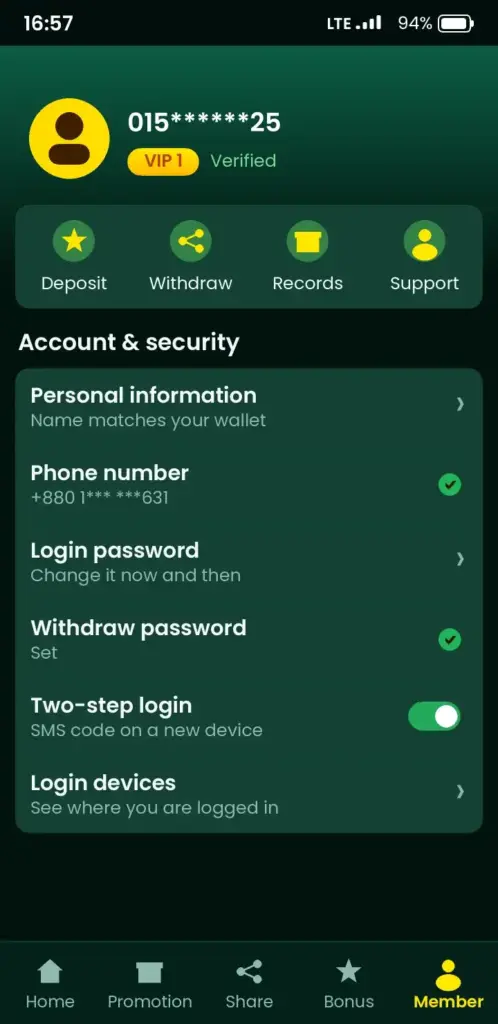
Extra identity checks can be required before some actions such as withdrawals. Check the current requirements in your account.
Troubleshooting: symptom, cause, fix
Most login problems come from a small typing or network issue.
| Symptom | Likely cause | Fix |
|---|---|---|
| Wrong password message | Typo, Caps Lock, old password | Show the password with the eye icon, retype, or reset it |
| OTP does not arrive | Weak signal, full inbox, wrong number | Check signal, clear old SMS, wait for the timer, request again once |
| Page keeps loading | Slow data or Wi-Fi | Switch between Wi-Fi and mobile data, then retry |
| App will not open | Old version or low storage | Free some space, update or reinstall from our app page |
| Account not found | Different number or username | Try the number you registered with |
| Login works, then logs out | Date and time wrong, or cache | Set phone time to automatic, clear browser cache |
Still stuck after these fixes? Write to support from the contact option in the app and describe what you see on screen. Never send your password.
Keep your account safe
A strong habit list protects your balance better than any setting.
- Use a password only you know.
- Never share your password or OTP.
- Log out on shared phones.
- Open the site from our own link, not from messages.
- Keep your phone locked with a PIN or fingerprint.
- Change your password if you think someone saw it.
Your mobile wallet needs the same care. If you add balance with bKash or Nagad, keep those PINs private too. You can check the wallet apps on the bKash Google Play listing and Nagad website.
After you log in: where to go next
Once you are in, pick a section and start small.
- 669Q sports betting for cricket and football picks.
- Slots for quick spins.
- Aviator for the crash game.
- Casino games for cards and more.
- Bonuses to read wagering and validity before you claim.
Set a daily amount in taka before your first round and stick to it.
Play responsibly
669Q is for adults 18 and over only. Decide a budget and a time limit before you play. Take a break when it stops being fun. Free, confidential help is available at Gambling Therapy.
Ready? Log in or register at 669Q and play within your limits. More answers are in the 669Q FAQ.
Login essentials at a glance
- Number + password + OTP gets you in.
- App and mobile site share one account.
- Reset a password with your registered number.
- Never share the OTP.
- 18+ only, play within your budget.
Changing your phone number or email on the account
If the number linked to your account is lost, switched off or no longer yours, OTP codes will keep going to the wrong place. Sort this out before you need a reset, not after. Update contact details while you can still sign in, from the profile or security area of the app.
Changes to a registered phone number usually trigger an extra identity check. Expect to confirm the old number first, or to contact support if you no longer have it. The exact steps can differ between app versions, so follow what appears on screen.
What to prepare before contacting support
- Your username or the registered phone number, written exactly as you signed up.
- The name on your account, which should match your ID and your bKash or Nagad wallet.
- A clear photo of your national ID or another document, if support asks for it.
- The approximate date and amount of your last deposit or withdrawal.
Never send your password or a live OTP to anyone, including someone claiming to be staff. Support does not need either to help you.
Switching SIM cards and mobile networks
Many players in Bangladesh move between Grameenphone, Robi, Banglalink and Teletalk SIMs, or use dual-SIM phones. A login that worked yesterday can fail simply because the SMS is landing on the other SIM or the data connection changed.
Check which SIM is set to receive messages, and make sure the phone has signal on that slot. If your connection is weak, move to stable Wi-Fi for the login, then switch back once you are in.
| Situation | What to check |
|---|---|
| Dual-SIM phone | Registered number is in an active slot with signal |
| New SIM, same number | SMS is working; send a test message to yourself |
| Data saver on | Turn it off for the app, then retry |
| Airplane mode toggled | Wait for full signal before requesting the code |
Request one code at a time. Pressing resend repeatedly can make older codes invalid and leave you with the wrong one.
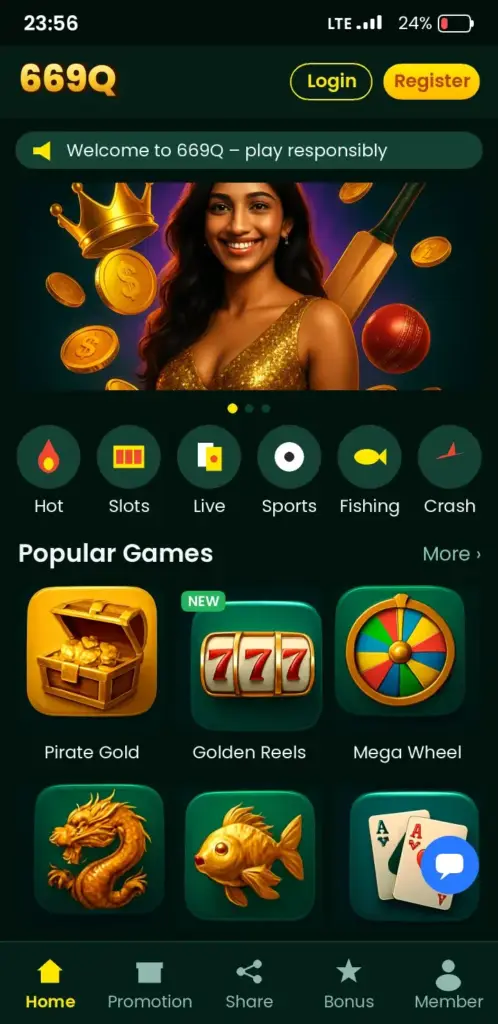
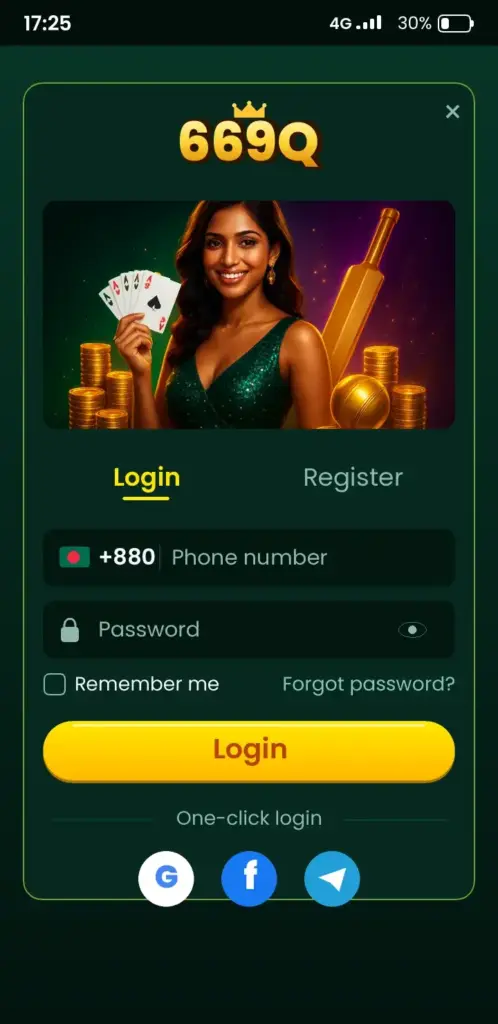
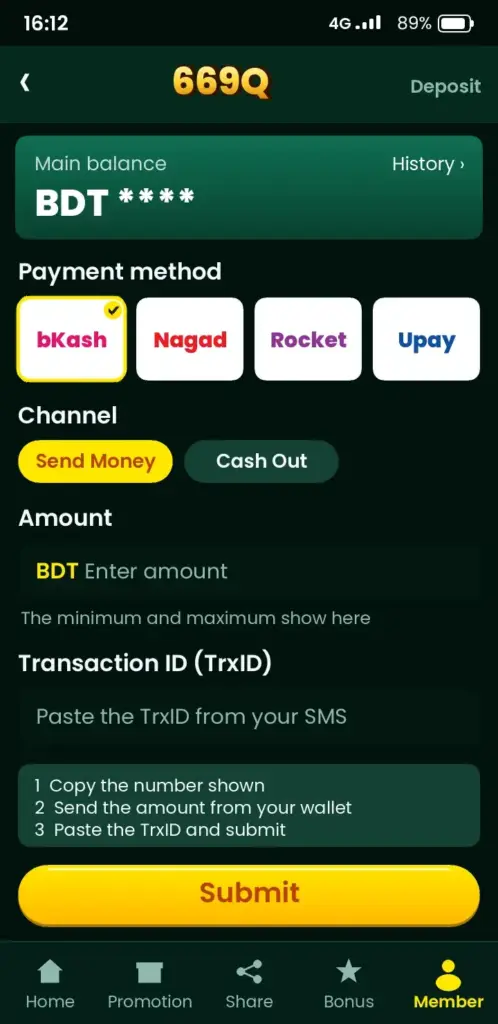
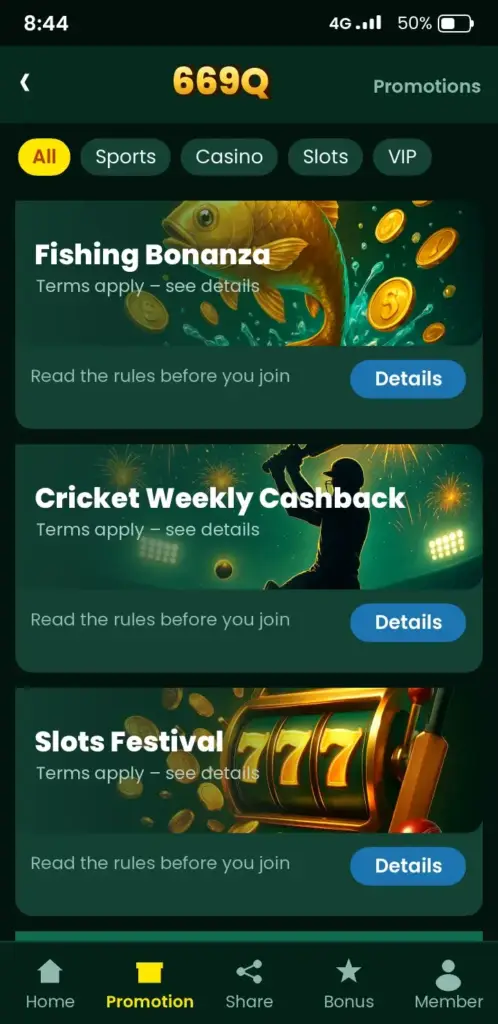
669Q App Screenshots: Game Lobby, Login, Deposit & Bonuses
See how the 669Q app looks on an Android phone before you download it – tap any screen to open the app.
Frequently Asked Questions
How do I complete 669Q login on my phone?
Open the app or mobile site, tap Login, enter your registered mobile number or username and password, then type the OTP if one is sent. If it fails, check for typing mistakes and signal strength before trying again.
What should I do if I forgot my 669Q password?
Tap Forgot password on the login screen, enter your registered mobile number, type the OTP you receive and set a new password. Use letters and numbers, and avoid passwords from other apps. Check the screen for the current steps.
Why is my 669Q OTP not arriving?
Weak signal, a full SMS inbox or a wrong number are the usual causes. Check your network, clear old messages and wait for the timer to end before requesting a new code once. Never share the OTP with anyone.
Can I use 669Q login on the mobile site without the app?
Yes. Open your browser, go to the 669Q site, tap Login and enter your details. The account, balance and history are the same as in the app, so choose whichever suits your phone storage.
669Q login korbo kivabe?
Open the 669Q app or site, tap Login, give your mobile number and password, then enter the OTP if asked. You need an account first, so register if you have not yet. Keep your password private.
Is 669Q login safe on public Wi-Fi?
It is better to avoid public Wi-Fi for any account sign-in. Use your own mobile data where possible, log out on shared devices and never share your password or OTP. Check that the address is our own site.
Why does the 669Q app keep loading at login?
Slow data or an old app version is the usual reason. Switch between Wi-Fi and mobile data, free some storage, and update or reinstall the app from the link on our app page. Then try logging in again.
Can I log in to 669Q with a new phone?
Yes. Install the app or open the mobile site on the new phone and log in with the same number and password. An OTP can be sent to confirm it is you, so keep your SIM in the phone.
How do I add balance with bKash after 669Q login?
After you log in, open the deposit section and look for bKash or other local wallet options. Follow the on-screen steps and check the current methods and limits in your account, as they can change.
What if 669Q says my account is not found?
Try the mobile number or username you used at registration, as a different number is the common cause. If it still fails, check for typing mistakes, then contact support from the app without sharing your password.